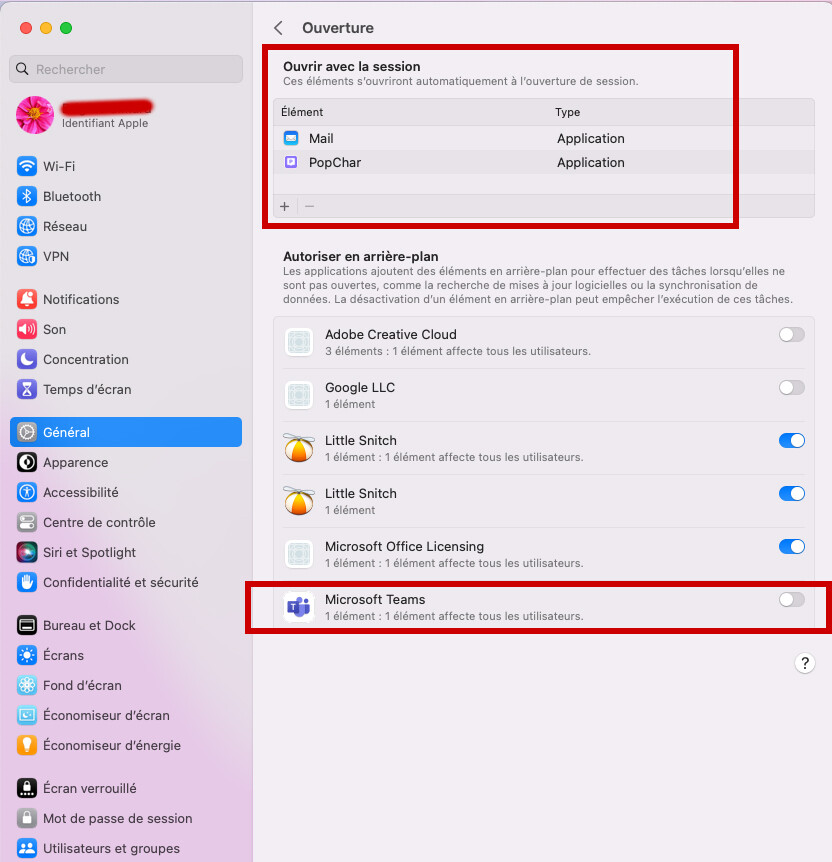
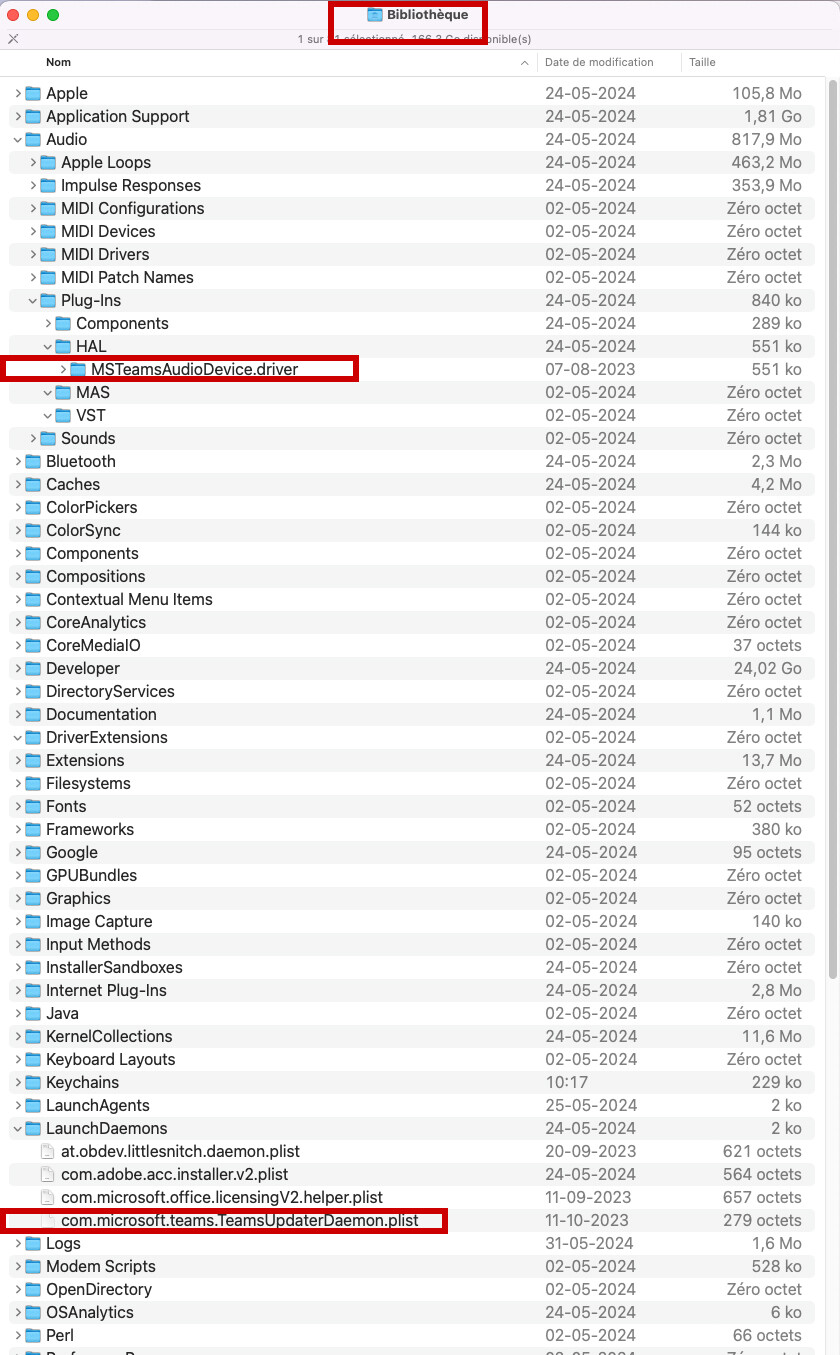
As in your picture above, you can still see Teams as an audio thing…
if you don’t have it or use it anymore,
try to go here and remove it, if it is there…
Apple settings then General tab then login options
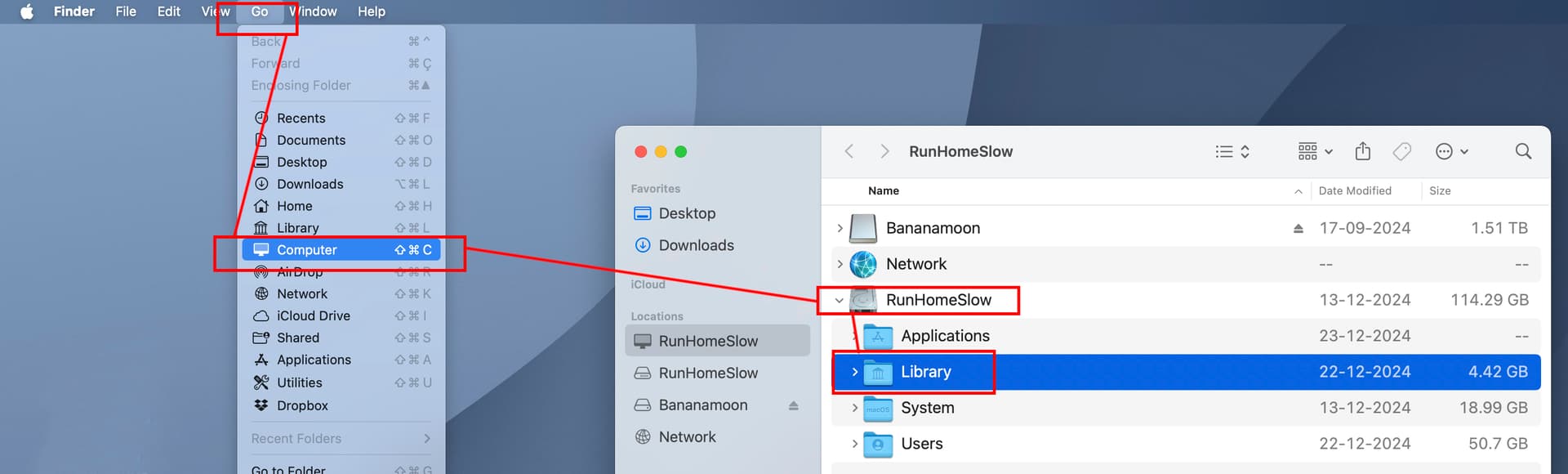
also in your main library… in Audio folder and LaunchDaemons folder
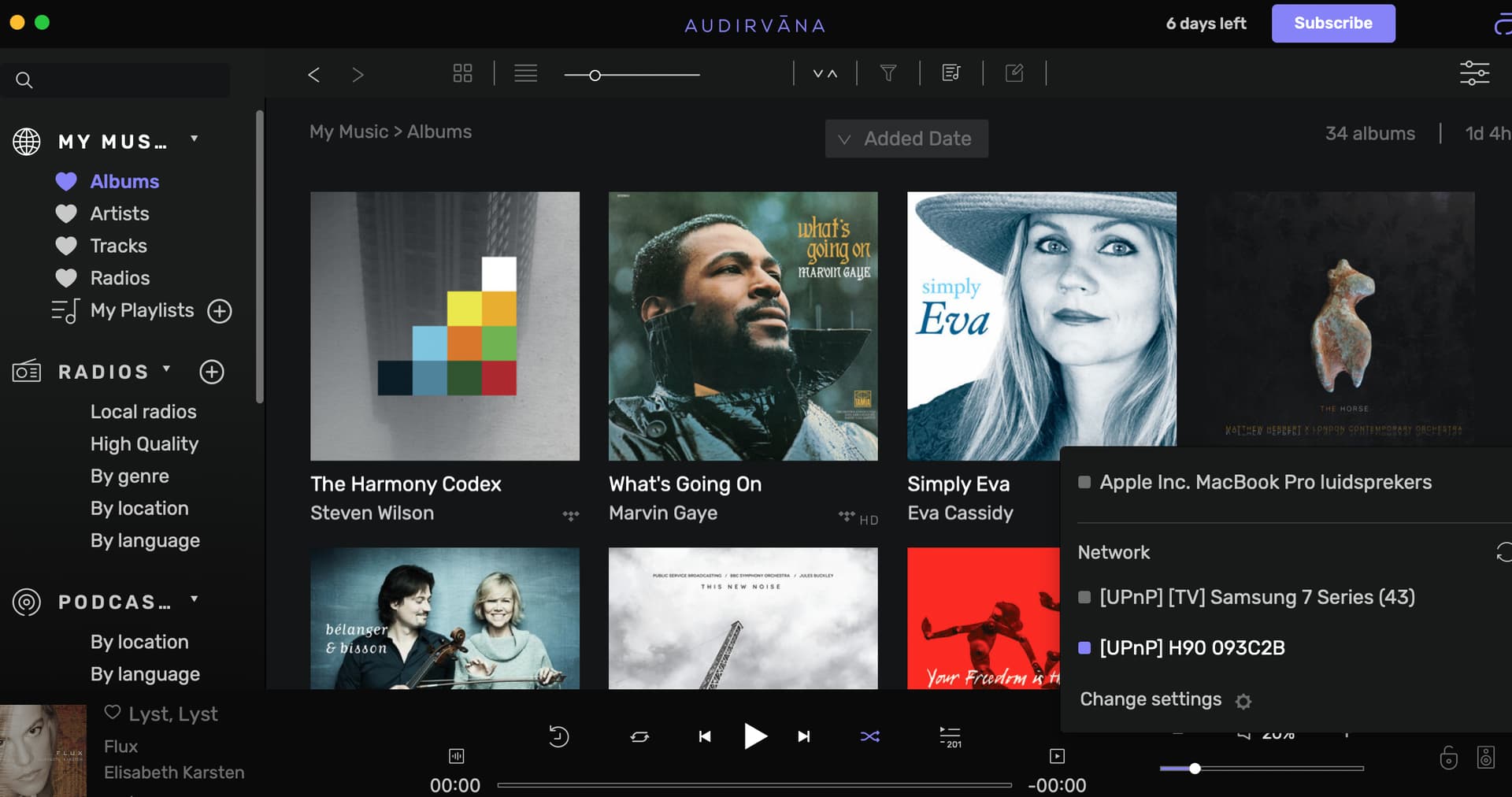
The circling arrows in the window displayed here, is a connected device/network “refresh” button, that forces the system to re-scan the interfaces.
*This report is showing you that the UPnP network interface is available but does not see the Hegel on the network…
**Delete the AS access and then re-add it to the local network access…
I agree with @jmtennapel 's advice and @RunHomeSlow 's advice to provide more detail in regard to your network architecture and eliminate the potential for MS Teams to cause problems.
*** If this happens again, check your Audio MIDI Setup and make sure the Hegel is selected as the output device.
A switch is not a router… My suggestion is to connect the computer and the Hegel to the router and use your switch for devices that don’t require a persistent handshake without interruption…
FYI… the iFi power devices are high-quality audio-centric SMPS.
Put the computer and the Hegel on the router and put everything else on the switch…
A router, serves as a traffic director that controls the flow of data packets between different networks. A router’s primary function is to connect various local networks to a wider area network (WAN) like the Internet, ensuring that information gets where it needs to go… Understand that the router operates at the network layer of the OSI model . It decides the optimal path for data transmission using routing algorithms and protocols. The question of how a router works can be answered by describing its role in analyzing the destination address of each data packet and determining the best route for it, forwarding it accordingly. https://www.howtonetwork.com/technical/network-management/what-is-the-difference-between-switch-and-router/
If you really want to clean your Ethernet feed to the Hegel, use this:
This will occur each time you power off and reboot your Mac
Go to settings/privacy&security/local network and toggle OFF and back ON the Audirvāna entry. Then go to Audirvana and refresh the network (circular arrows). Your Hegel should re-appear. Does for me every time.
For those of us who experience this issue it is required after almost every re-start. For some reason with affected configurations the macOS local network device access permission seems to freeze/crash on a reboot. Doing the toggle forces the system to be restarted followed by refreshing the network devices in Audirvana restarts access until the next reboot. This occurs for me almost every reboot.
However… This seems to be related to UPnP protocol… Yes? @Djm1960 … Because all of the other network components are accessible via the network… Yes?.. The Audirvāna team has already made it clear this is an Apple software issue…
I found that some USB 2.0 and USB 3.0 devices were no longer compatible with Sonoma or Sequoia…
I think the real test is to connect the DAC with a direct, simple Ethernet connection from the computer.
With the computer connected direct to the router and the Hegel connected direct to the router… you are eliminating interrupts that are introduced by the switch which is not a router… It also removes any latency produced in the transmission in and out of the switch (not to get into ground/earth differential gremlin potentials in this particular network architecture).… Using the router, maintains the expected protocol behaviors that would exist in a simple, direct Ethernet connection of the DAC to the computer.