Hello,
I tried again to install Audirvana Origin on my Synology NAS. I got a bit further than with previous attempts: This time I was even able to specify the folder where I stored my music.
However, the import of the music was aborted after about 90 percent.
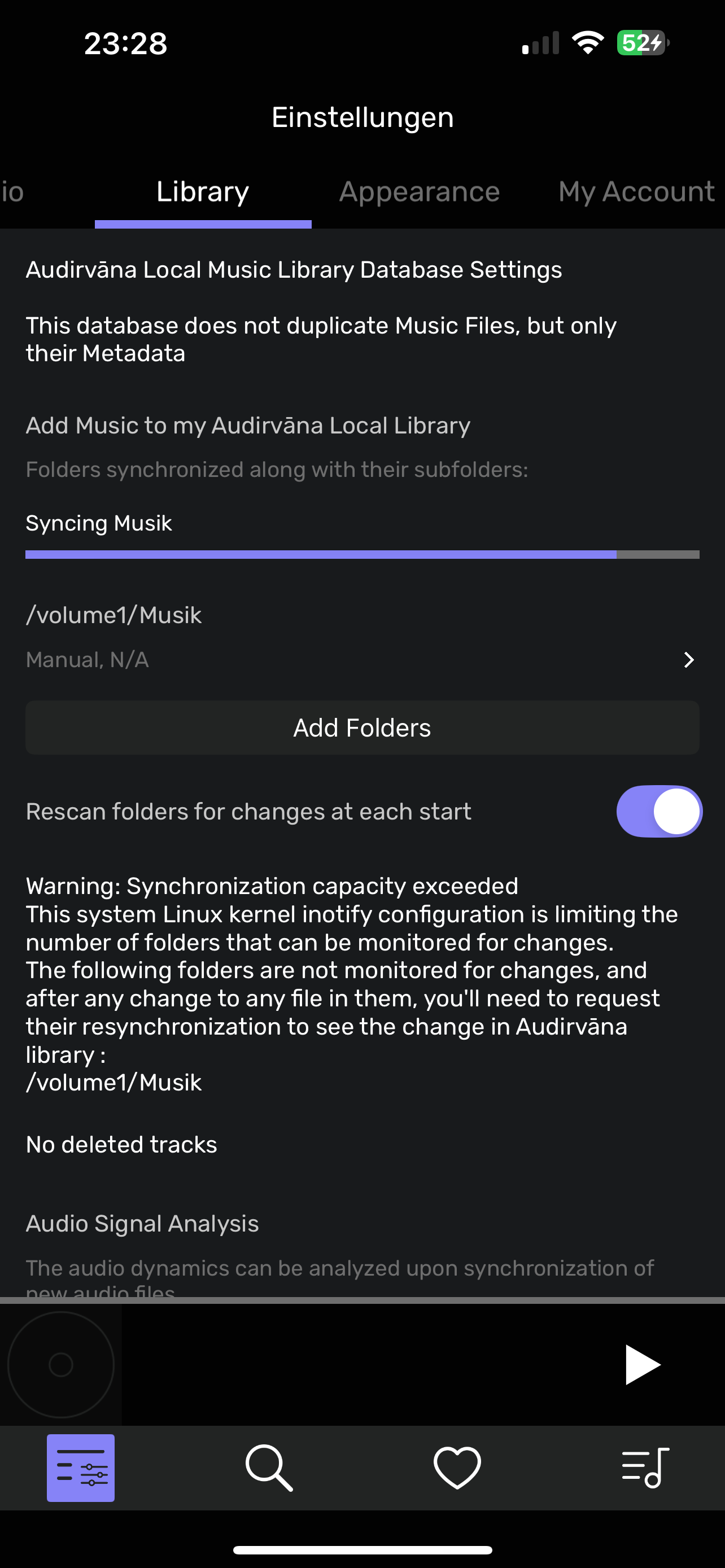
The Audirvana Remote app on my iPhone gives me the following error message:
Warning: Synchronization capacity exceeded.
This system Linux kernel inotify configuration is limiting the number of folders that can be monitored for changes.
The following folders are not monitored for changes, and after any change to any file in them, you’ll need to request their resynchronization to see the change in Audirvana library
/volumel/Musik
I am not so familiar with Synology or Linux in particular as to be able to change the inotify configuration.
What I can say, however: The Synology is running a Plex server and a Roon server. Both were able to read the same music directory without any problems. I therefore doubt that the Linux kernel is configured incorrectly. The other apps show that it works. (Note: Plex automatically recognizes when I add music and updates the database. With Roon I have to initiate the re-read manually)
Nevertheless my question: What can I do?
Synology DS720+, 18GB RAM, DSM 7.2.2-72806 Update 3
audirvana-origin-x86_64-2.6.1