Which output

Just diving in to the rabbit hole of the settings and simply learning as I go along. So with regards to the output configuration, WASAPI or ASIO? here is a brief of the Audiolab D9 I am sending the audio to via USB…The Audiolab D9: This DAC supports high-resolution PCM (up to 768kHz) and DSD512 via its PC USB input, which both driver types should be able to handle, though DSD might require ASIO for native support.

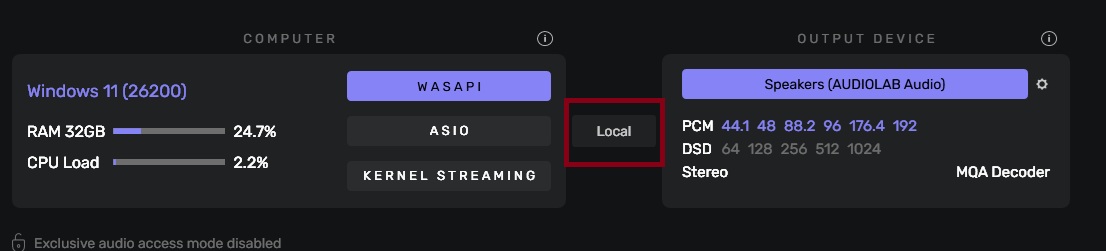
Is WASAPI my best option considering I am just playing FLAC files from the PC at the moment but will also be signing up for Qobuz shortly? Or is it just a case of listening to either and see which one I prefer over the other? I also noted from a youtube video I was watching but cannot find now, that it showed the connection between the driver and output device as USB, mine only shows “LOCAL” Perhaps that was an older version of Audirvana he was using.

As you can see, ASIO identifies the full range of your DAC’s capabilities correctly. I don’t know whether you would want to upsample partially in the computer as opposed to using the DAC’s internal chip for all upsampling, or whether you have any DXD or DSD material you want to play, but you’d want ASIO for that.

Otherwise, use whatever sounds good.

3 Likes

Thanks Jud, so to clarify then, when you say ASIO identifies the full range of the DAC`s capabilities correctly. I assume then that would only be the case if I wanted to upsample or use DXD or DSD material then? If the answer to all three is no, then WASAPI is my best option I guess.

  • If you play on a PC and don’t want to play native DSD, you should try to select Kernel Streaming mode in your computer’s settings. Since it is the lowest programming language accessible on PC, it generally delivers optimal transparency on this platform. For native DSD, you have to use ASIO.
    How to get the best sound possible with Audirvāna?

:musical_notes: :eye: :nose: :eye: :musical_notes:

2 Likes

Use your ears.

Thank you, I never thought of adding Kernel into the equation. It appears that the consensus between all three is that Kernel gives an overall better sound, but did go on to say if everything is set up correctly. Now I just need to know if there is anything else I need to learn and understand with regards to any other adjustments I should try within Audirvana if I stick with the Kernel, or just leave it as is?

Please paste your debug information here so folks can view your Audirvāna configuration in concert with your computer system resources relative to your playback system design. (remove IP information )

Also, AI is not your friend in this context…
:musical_notes: :eye: :nose: :eye: :musical_notes:

1 Like

Hopefully this is what you are wanting.

Audirvana Studio 2.11.4 (21104)

Running on ASUS System Product Name
Windows 11 (26200) x86_64 with 32GB physical RAM

Connected account of : Richard Venn

LOADING/DECODING:
Max audio buffer size: 16384MB
Polarity Inversion:
Globally: OFF
Per track: ON

SIGNAL PROCESSING:
Internal EQ: OFF
Effect Plugins: ACTIVE in realtime mode
VST3 plugin #0: C:\Program Files\Common Files\VST3\Marvel GEQ.vst3
ClassID: C40CD0E0899D4484BFB44A40B57B62C4
VST3 plugin #1: None
VST3 plugin #2: None
VST3 plugin #3: None

UPSAMPLING:
r8brain not in use
r8brain filter parameters
Bandwidth = 99.5%
Stop band attenuation 218dB
Phase linear

AUDIO VOLUME:
Replay Gain: by track
Max allowed volume: 79.21
SW volume control: OFF

LIBRARY SETTINGS:
Sync list: 3 folders
AUTO: D:\Flac\Sade - The Best Of Sade (1994) (PBTHAL LP 24-96 FLAC) vtwin88cube
AUTO: D:\MP3\Glen Campbell - Gentle On My Mind The Best Of (2013) mp3 peaSoup
AUTO: D:\Playlists
Sync folders at startup: YES
Sort and display order: en
Library database path: C:\Users\u8myu\AppData\Local\Packages\Audirvana.Audirvana-4118-9684-d80dbb7827cd_q3nymrkmej12j\LocalCache\Local\Audirvana\Audirvana\AudirvanaDatabase.sqlite

ACTIVE STREAMING SERVICES

APPEARANCE SETTINGS:
UI theme: dark
Font size: large
Language: System language
Show album covers in tracks list: yes
Source list sorted:
My Music
Radios
Podcasts
Streaming
Local
Startup view: My Music: Albums
Show local extended in source list: yes
Use media keys: yes
Use media keys for volume control: yes
Use legacy Bonjour protocol: no
Number of paired remotes: 0
Remote pairing code required: yes
Screen saver disabled: no

=================== AUDIO DEVICE ========================

Active method: Local

Max. memory for audio buffers: 16384MB

Local Audio Engine: KernelStreaming

Preferred device:
IUSBAudio ASIO Driver
Model UID:IUSBAudio ASIO Driver
UID:IUSBAudio ASIO Driver

Currently playing in Integer Mode:
Device: 2ch 24bits Integer, 6 bytes per frame 44.1kHz

Active Sample Rate: 44.1kHz

Bridge settings:
Sample rate limitation: none
Sample rate switching latency: none
Limit bitdepth to 24bit: OFF
Mute during sample rate change: OFF

Selected device:Speakers (AUDIOLAB Audio)
Manufacturer: IAG
Model name: AUDIOLAB USB Audio 2.0
Model UID: TUSBAUDIO_ENUM\VID_2622&PID_0041&KS
UID: \?\SWD#MMDEVAPI#{0.0.0.00000000}.{3cb756a6-4607-476f-aa28-c8d0ae494735}#{e6327cad-dcec-4949-ae8a-991e976a79d2}
USB Vendor ID: 0x2622
USB Product ID: 0x0041
Kernel Streaming capable

6 available sample rates up to 192000Hz
44100
48000
88200
96000
176400
192000

Volume Control
Physical: No
Virtual: No
Max volume alert: Enabled

MQA capability
Auto-detect MQA devices: Yes
MQA Decoder device

DSD capability
Unhandled (PCM conversion) with boost gain of 6dB

Device audio channels
Preferred stereo channels L:0 R:1
Channel bitmap: Ox3, layout:
Channel 0 mapped to 0
Channel 1 mapped to 1

Audio channels in use
Number of channels: 2
Use as stereo device only: No
Simple stereo device: No

1 output streams:
Number of active channels: 2, in 1 stream(s)
Channel #0 :Stream 0 channel 0
Channel #1 :Stream 0 channel 1
2 ch Integer PCM 24bit little endian 44.1kHz
2 ch Integer PCM 24bit little endian 48kHz
2 ch Integer PCM 24bit little endian 88.2kHz
2 ch Integer PCM 24bit little endian 96kHz
2 ch Integer PCM 24bit little endian 176.4kHz
2 ch Integer PCM 24bit little endian 192kHz
2 ch Integer PCM 16bit little endian 44.1kHz
2 ch Integer PCM 16bit little endian 48kHz
2 ch Integer PCM 16bit little endian 88.2kHz
2 ch Integer PCM 16bit little endian 96kHz
2 ch Integer PCM 16bit little endian 176.4kHz
2 ch Integer PCM 16bit little endian 192kHz

Local devices found : 1
Device #0: Speakers (AUDIOLAB Audio)
Manufacturer: IAG
Model UID: TUSBAUDIO_ENUM\VID_2622&PID_0041&KS
UID: \?\SWD#MMDEVAPI#{0.0.0.00000000}.{3cb756a6-4607-476f-aa28-c8d0ae494735}#{e6327cad-dcec-4949-ae8a-991e976a79d2}
USB Vendor ID: 0x2622
USB Product ID: 0x0041
Model name: AUDIOLAB USB Audio 2.0

I suggest lowering your playback preload memory allocation to 4GB, you are allocating 50% of your System RAM for preload memory… More System RAM provides more resources for operational demands and memory bus throughput in concert with the Audirvāna audio-engine and operational demands.

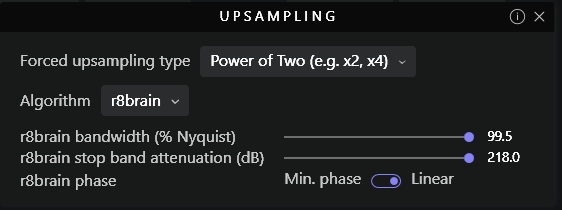
You may like to enable ‘Power of Two’ up-sampling strategy… And, if you have DSD files for playback, configure DSD playback ‘Native DSD streaming method’ → ‘None (convert to PCM)’
Read the help menu(s) to get better informed about using the Up-sampling module.
You may also like to try using the vertically integrated Studio EQ…

The information about your DAC (speakers) does not help to point to the actual device… What make and model is the DAC or speakers…? There are a couple of Audio Lab component manufacturers… Knowing more about the DAC platform is useful in optimization.

:musical_notes: :eye: :nose: :eye: :musical_notes:

1 Like

Ok thanks, the dac is the Audiolab D9, it only says (speakers) as that was just the default when installing the Audiolab driver. So this looks ok now then?

It looks like ASIO is your best option with this DAC…

From the D9 Specifications information literature:

Optical/Coaxial: 44.1kHz → 192kHz
USB HDD: 44.1kHz → 96kHz
PC USB: 44.1kHz → 768kHz (PCM) / DSD64, DSD128, DSD256, DSD512

The debug report is showing limited sample-rate and format capability… In any case it is best to transmit PCM to the ESS chipset as it converts DSD to PCM for processing in the HyperStream architecture… By up-sampling all PCM files using ‘Power of Two’ you will reduce noise potentials in the chipset by reducing the DSP demands of the DAC architecture…

Make sure you are using a High-Speed USB cable and no other intermediary software routing in the platform… Maximize the priority of Audirvāna in the computer settings…

:musical_notes: :eye: :nose: :eye: :musical_notes:

1 Like

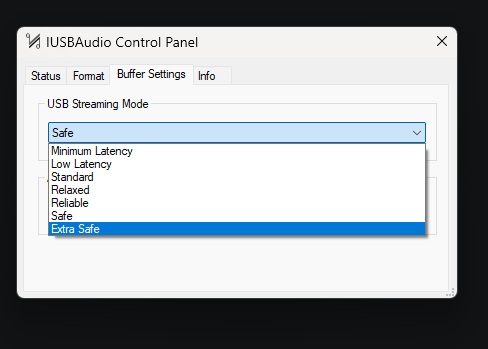
Cheers, by choosing ASIO the forced upsampling type is automatically deactivated anyhow. Just one last thing, I also get this configuration pop up when I switch to ASIO.Im guessing its something the Audiolab triggers. It was on SAFE by default, is that where it`s best to leave it do you know?

You will need a Windows-centric user to better help you here… I’m macOS-centric.
Your debug report should display the complete sample-rate and format support for the D9 and what you have posted does not… Make sure the USB driver and firmware is the latest.

When you make changes like this, close Audirvāna and restart the computer and DAC to make sure everything is operating as expected.

:musical_notes: :eye: :nose: :eye: :musical_notes:

1 Like

Check your Computer settings in Audirvāna for exclusive access operation…

From the Audirvāna Knowledge base and online help menu(s)…

Activation of Exclusive Access

The activation of the exclusive access audio mode is automatic each time you start playing music with Audirvāna.

As you start playing, a popup message informs you of the activation and asks for confirmation.

You will then see the confirmation of this lock by looking at the lock icon at the bottom right side of Audirvāna, next to the speaker icon:

:musical_notes: :eye: :nose: :eye: :musical_notes:

1 Like

Try low latency. If that causes any skips or other problems, gradually go up the latency ladder until you get to the lowest trouble free setting.

1 Like

Thanks again, yeh I understand about the padlock, and settings on the pc for exclusive have always been set in place since the install of the Audiolab driver. What was confusing me though was where that pop up appeared from for the USB audio control panel. After a bit of head scratching I discovered I can access it by clicking on the cog icon in the ASIO window. I really do appreciate the time you have spent here, after a couple of heart attacks in the past the brain does suffer a bit of damage where it`s been starved of oxygen. I have to read things a thousand times nowadays before it sinks in, and a lot of copying and pasting things for notes if I have to come out of one programme to view something else, cheers.

1 Like