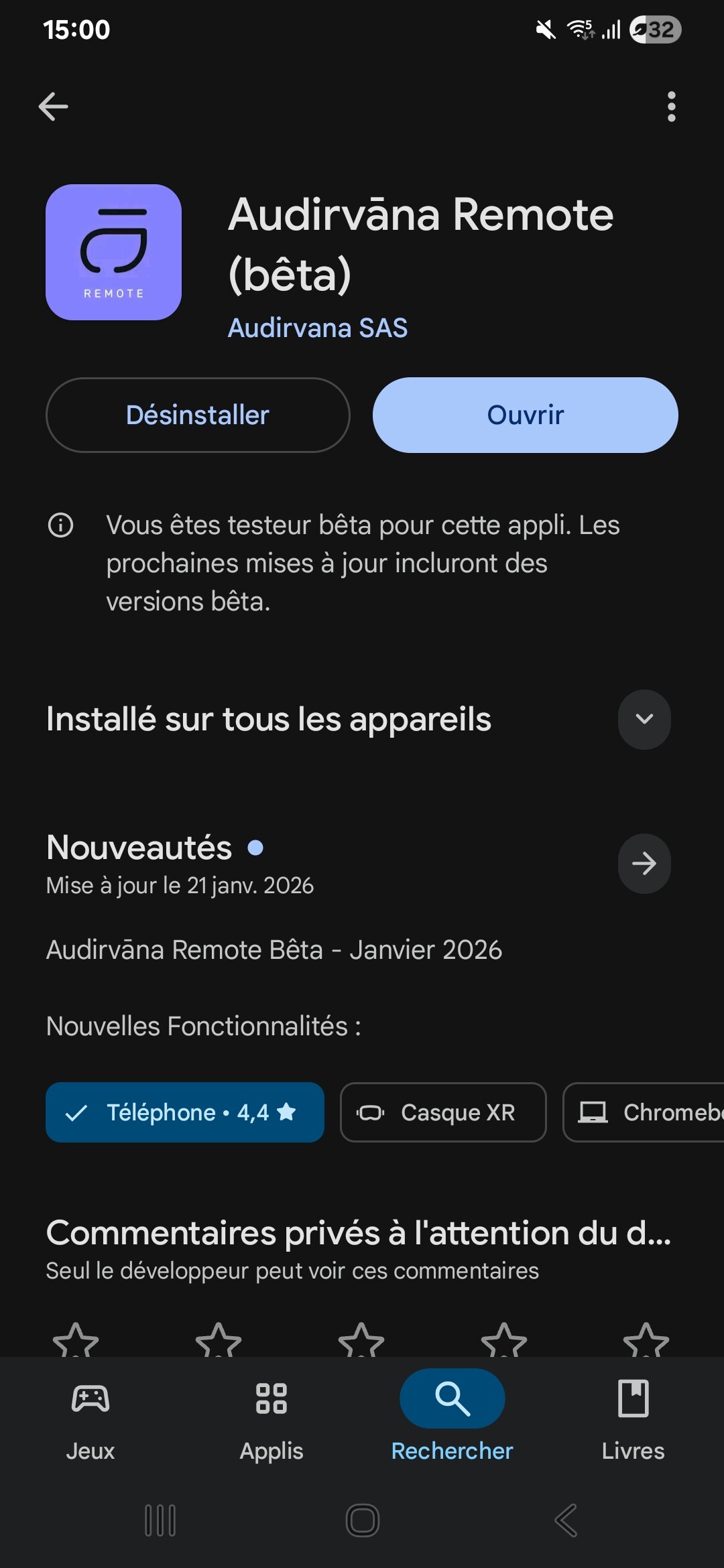
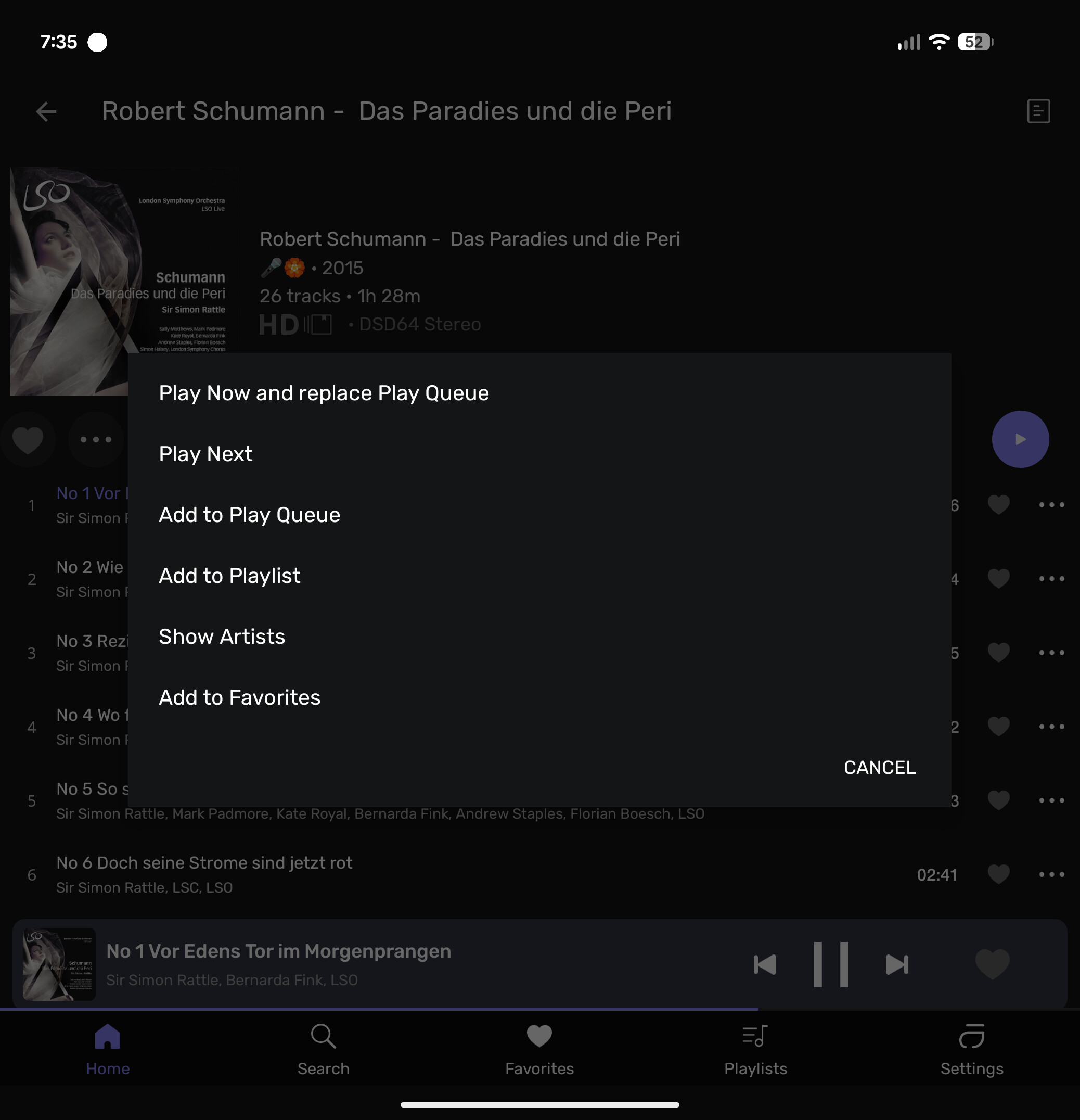
We’re thrilled to announce the start of our public beta for the Audirvāna Remote app on Android, effective 2026-01-20T23:00:00Z !
The iOS version will come very soon!
 What’s New?
This update introduces exciting new features and significant improvements, including:
- New User Interface
- IP Connection to Your Computer
- Smart Playlist Creation
- Real-time Equalizer
During this beta period, we will continuously add features and enhance the app. Updates will be posted in the Release Notes category.
To track new posts, click the bell icon  and select “Watching” for notifications.
You can also adjust your profile settings by clicking on “beta” tag, then the bell icon to receive updates.
 Part of the Remote has not been changed yet, like the Settings or Metadata editor, but it will during the Beta.
 What Should You Test?
With the completely redesigned UI, we highly value your feedback on your overall experience.
A key feature to try will be the Real-time Equalizer. Please let us know if you encounter any issues while making adjustments.
To Activate the Equalizer:
1. Go to the Settings in the Remote app under the Processing section.
- Enable “Realtime control” (not available for DSD and UPNP playback)
2. Play a track, tap the three-button icon, and select Processing to view the equalizer in real-time.
Here are the minimum requirements to use the Beta version properly:
Audirvāna Studio v3 beta: 2.99.15
Audirvāna Studio: 2.11.4 (2.11.5 if you are on macOS)
Audirvāna Origin: 2.6.2 (2.6.4 if you are on macOS)
How to Get Started with the Beta?
Android:
1. Join the Beta:
- Click the link on your device or go to the Audirvāna Remote page on the Google Play Store:
2. Download or Update the App:
- Open the Google Play Store, search for Audirvāna Remote, and tap Update or Install.
3. Test the App:
- Once installed, open the app and start using it.
4. Provide Feedback:
- Share your insights directly in this thread.
How to Revert to the Previous Version?
Android:
1. Open the Google Play Store, search for Audirvāna Remote.
2. Scroll to the Join the beta section and select Leave; confirm your choice.
3. Uninstall the beta version, then search for Audirvāna Remote in the Google Play Store and tap Install.
How to Provide Feedback for the Beta?
You can respond to this thread to share your feedback. Please include:
- Operating System Type (iOS/Android)
- Version of the software used
- Operating System Version
- Screen Size
- Feedback Type (Like/Dislike/Bug/Slowness/Missing Feature)
 Thank you for being part of our beta program! We can’t wait to hear your thoughts!