@Audioaddict Please describe your network configuration…
I am just a MacBook user, I can find (empty) “home” folder in Finder, but right click does not contain option “show library folder”. Am I looking in wrong place?
Thank you
Hi Antoine
not that I am aware of.
I have my mbp connected to a switch (netgear) which als contains Amplifier Hegel and switch is connected to accespoint by a Experia box. v10A router.
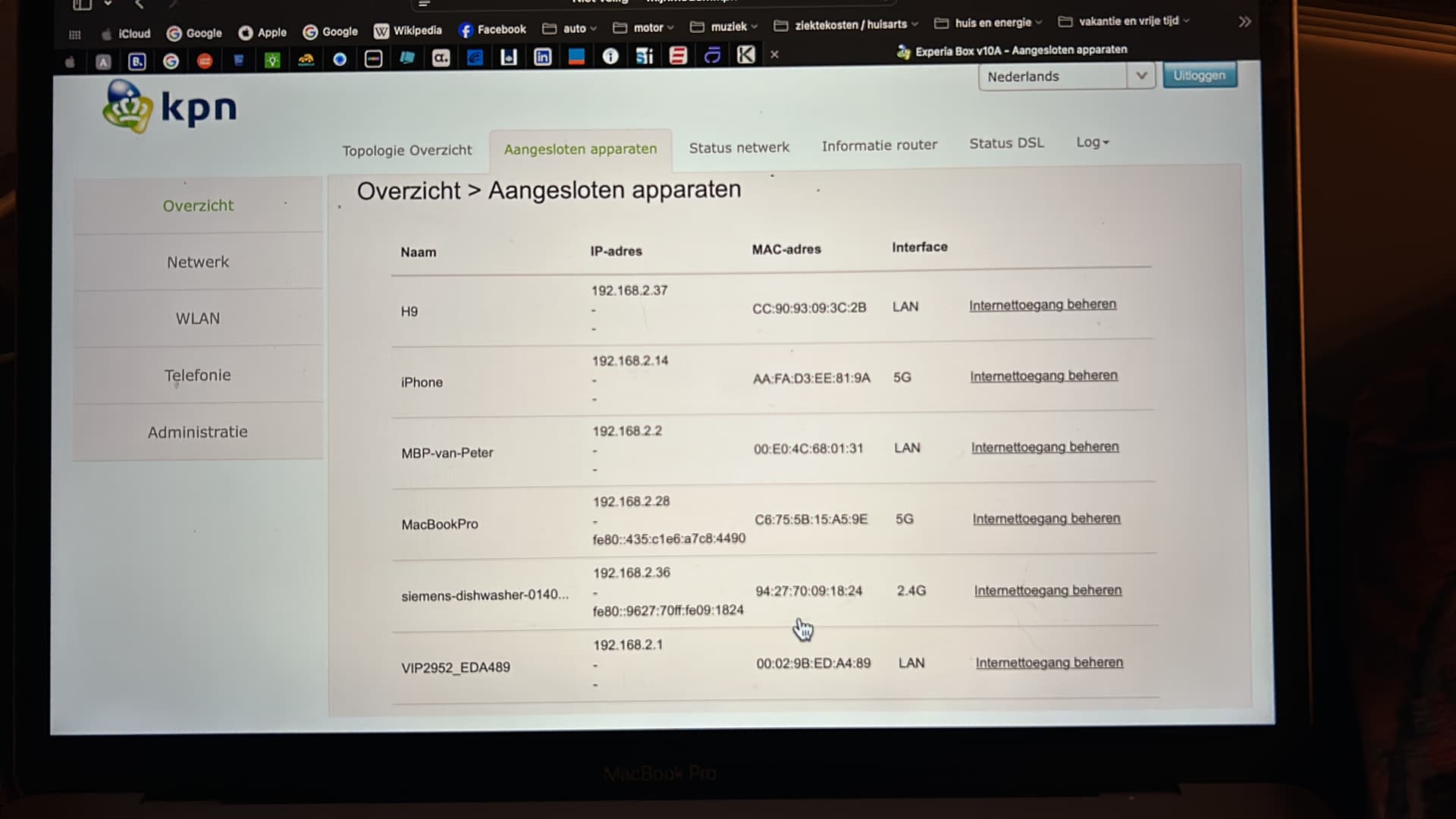
Hi Peter, is the accespoint connected by an ethernet cable to the switch or the router?
Maybe a restart of the router could solve the problems (unless you already have done that).
I am testing my dad’s old MacBook for Audirvãna, and I don’t have any problems at all. MacBook is connected to WiFi.
Your issues are surprising.
There are all sorts of problems with MacOS 15 and networking.
Hi Frido, thx for your reply and suggestions, i already performed more restarts of the router, also without succes.
I guess in the end it will be something simple that I overlooked.
Connect the Ethernet cable directly from your MBP to the Hegel, so to get a baseline… If the Hegel shows as the DAC then you know where to start trouble-shooting the network if it is the network… 
A few steps to try (from your debug info macOS is forbidding access to your local network playback devices):
- Turn off the macOS inbuilt firewall in system settings/network/firewall. (The macOS firewall is set to off by default by Apple, they believe you do not need this if operating on a password protected home network, you only really need it set to on when accessing the internet on a public network). Then reboot your mac.
- Open system settings/privacy and security/local network and toggle off and on the entry for Audirvana if you are prompted.
- Restart Audirvana or click the network refresh button in the playback device selection dialog.
If that doesn’t work…
- Open system settings/network/wifi and check that "Private Wifi address’ is set to fixed. If not set to fixed and reboot your mac after saving the setting.
- Try disabling your USB network adaptor and run on wifi only as a test.
For the sysoptimiser failing to load issue, use the search button on this forum for “sysoptimiser” and you will see lots of posts reporting issues with sysoptimiser, these most commonly occur when running both 3.5 and AS or AO on the same machine. They are solvable as seen from some of the posts. I should state I only have Studio on my machine and have never had an issue with sysoptimiser failing to load correctly. See link and try the fix contained in the post.
Sorry for the misguidance in my previous post on how to reveal the ‘Library’ folder… Note the bold text here below…
EDITED:
This is the correct method/path:
Open a Finder window, choose your User–> ‘Option-click’ ‘Go’ from the Menu Bar–> Hold the ‘Option’ key down and look for ‘Library’… click on ‘Library’ (you can release the Option key) and look for ‘Application Support’ … look down the list of folders and find ‘Audirvana’ the preference file (AudirvanaDatabase.sqlite) is in that folder.
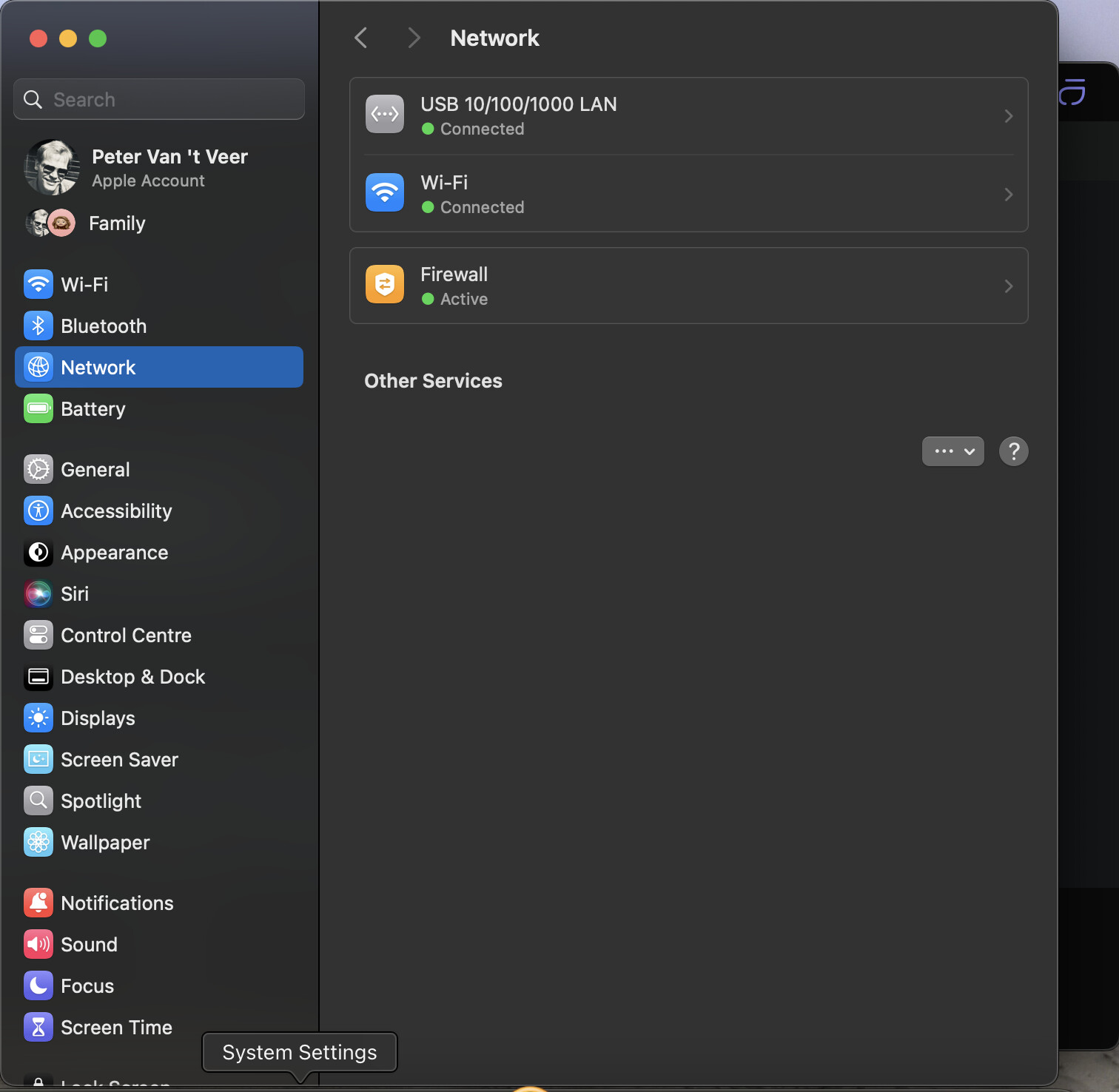
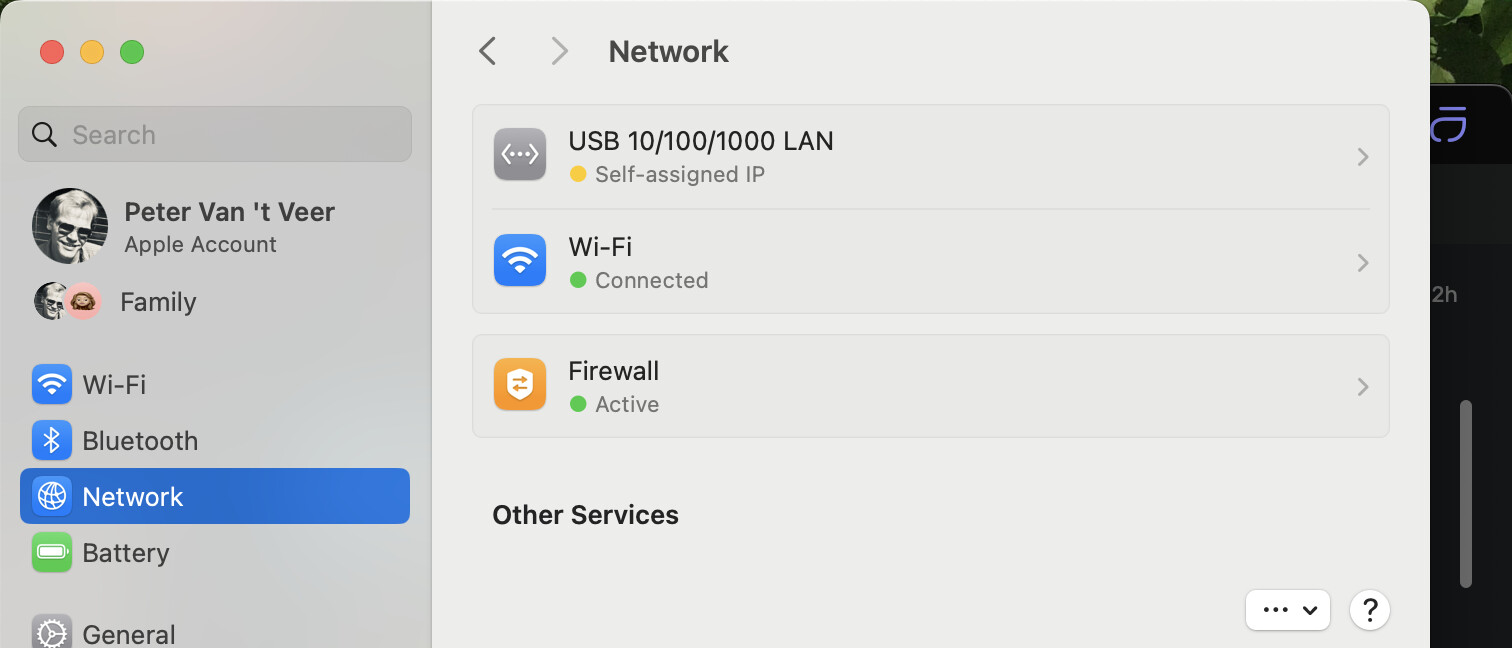
@Agoldnear I connected amplifier / dc directly on mbp and no connection to internet trough LAN. What happens is H9 is visible but it creates its own self assigned IP.
thanks for your help! unfortunately, none of your advises worked.
I am no to familiar with mbp settings and in English is even more difficult.
but I changed my mbp to English which helps.
I will try sys optimiser post for a solution, but am rather desperate…
Support will help me tomorrow with a screen-sharing session, hopefully this will solve all the issues.
thanks again
2 Likes
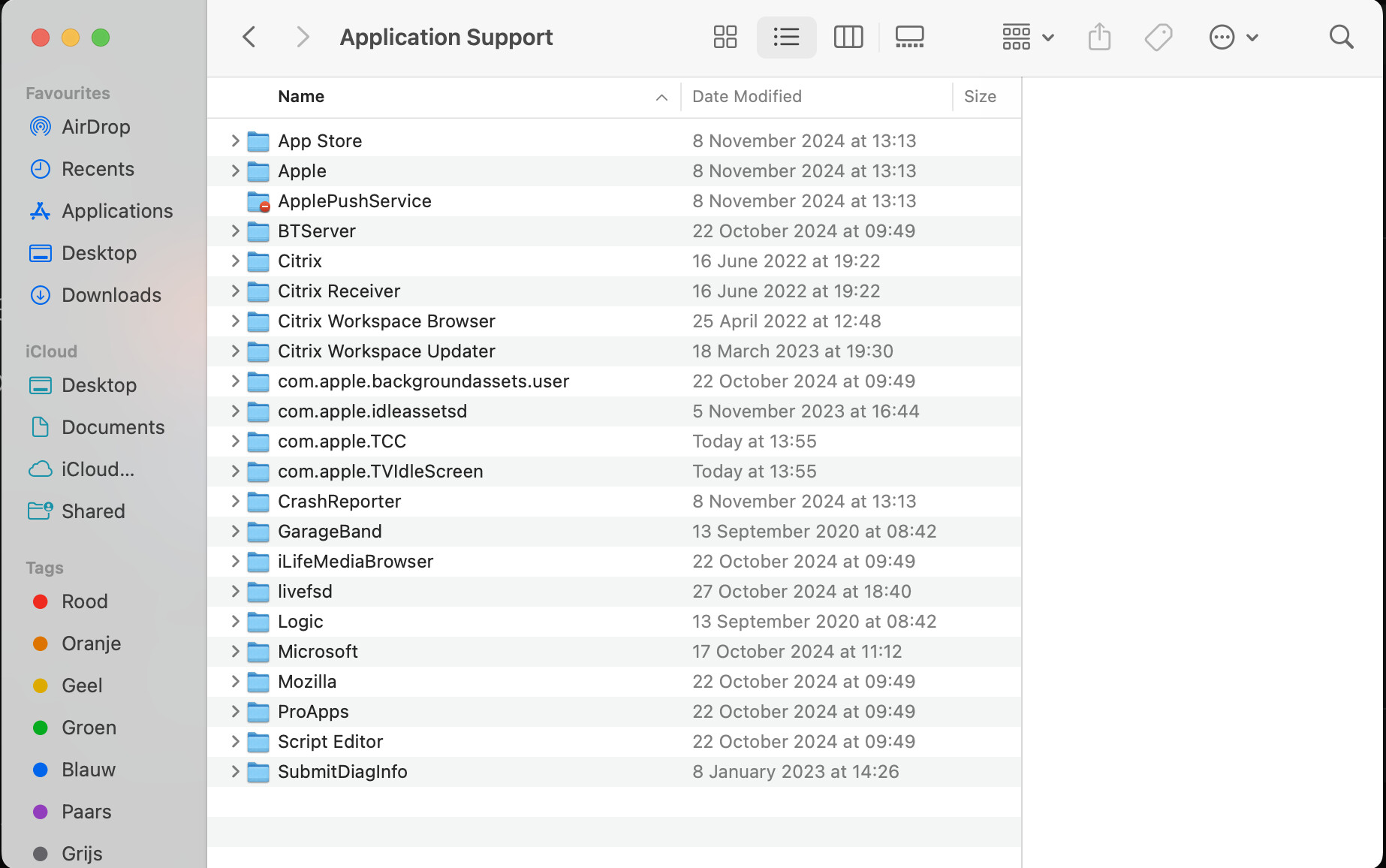
It’s not in a subfolder in App Store?
Apparently, you are not in the User account where Audirvana is installed… The screen-shot does not show a User account selected…
I see Citrix components in this folder are you running virtual machines?


Oeps! You are right.
Citrix was installeer Some years ago.
Yes… the Hegel will have an IP address intrinsic to its firmware, just like every network component… The salient aspect of this test connection is whether you can play files or not play files.
No files to play on the amplifier. As does not see a uPnP hegel amplifier in the processing box.
Hi Peter, is there another laptop or desktop PC in the house on which you can try to install AS? That way you can test if the problem lies with the MacBook. If the other device doesn’t have issues that is.